HostingServerlys team8 min read
cPanel Beginner's Guide: Finding Your Way Around
Summarize with:
Learn to navigate cPanel like a pro. This beginner's guide covers file management, email setup, databases, domains, backups, security
cPanel is the most widely used web hosting control panel in the world. It gives you a graphical interface to manage your website files, email accounts, databases, domains, security certificates, and more — without needing to touch the command line. If you have a hosting account with Serverlys or most other cPanel-based providers, this is the tool you will use daily.
This guide covers every major section of cPanel, what each feature does, and when you would need to use it. By the end, you will be navigating your hosting dashboard like a seasoned professional.
How to Access cPanel
There are three ways to log in to cPanel:
- Direct URL: Go to
yourdomain.com/cpaneloryourdomain.com:2083in your browser. - Server IP: If your domain is not yet pointing to your hosting, use
your-server-ip:2083. - Client portal: Log in to your hosting provider's client area and click the cPanel login button.
Enter the username and password from your hosting welcome email. If you have forgotten your password, most providers let you reset it from their client portal.
The cPanel Dashboard Overview
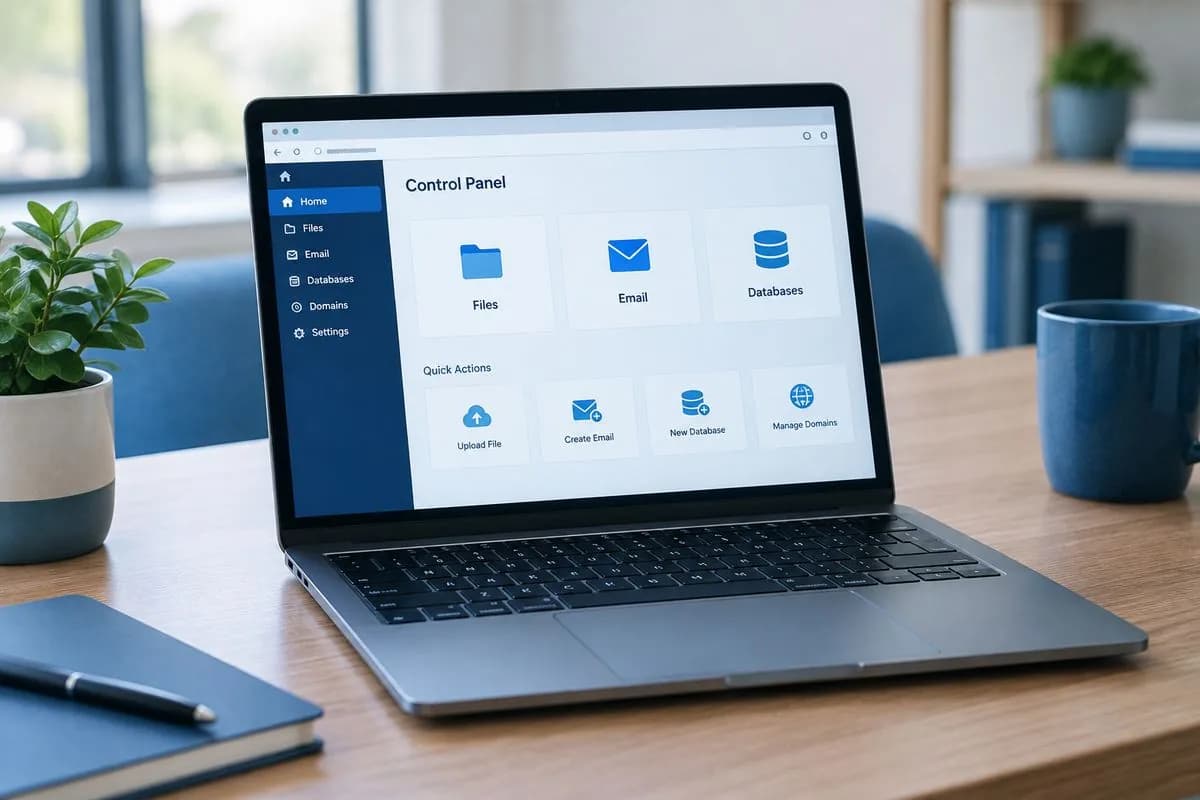
When you first log in, cPanel presents a dashboard organized into sections. The layout varies slightly between hosting providers, but the core sections are the same. Here is what you will typically see:
| Section | What It Contains | When You Use It |
|---|---|---|
| Files | File Manager, Backups, Disk Usage | Upload, edit, or delete website files |
| Email Accounts, Forwarders, Filters | Create and manage email addresses | |
| Databases | MySQL, phpMyAdmin, Remote MySQL | Create databases for WordPress, etc. |
| Domains | Addon Domains, Subdomains, Redirects | Add new domains or create subdomains |
| Security | SSL/TLS, IP Blocker, Hotlink Protection | Install SSL certs, block IPs |
| Software | Softaculous, PHP Version, Cron Jobs | Install WordPress, schedule tasks |
| Metrics | Visitors, Errors, Bandwidth, Awstats | Monitor traffic and error logs |
Files Section
File Manager
The File Manager is a web-based file browser that lets you upload, download, edit, rename, move, and delete files on your hosting account. It works like the Finder on Mac or File Explorer on Windows, but for your server.
Key things to know:
- Your website files live in the
public_htmldirectory. This is the root of your website — any file placed here is accessible via your domain. - The
.htaccessfile controls redirects, security rules, and URL rewrites. It is hidden by default — click Settings in the top-right corner and check "Show Hidden Files" to see it. - Use the built-in Code Editor for quick edits to configuration files. Right-click a file and select "Edit" to open it.
- For uploading multiple files or large files, FTP or SFTP is faster than File Manager. See the connection settings in your welcome email.
Backup Wizard
The Backup section lets you create and download full or partial backups of your hosting account. You can back up your home directory (all files), databases, email forwarders, and email filters separately. For a detailed guide, see our website backup tutorial.
Disk Usage
This shows you exactly how much storage space you are using and what is taking up the most room. It breaks down usage by directory, so you can identify and clean up large files or old backups that are consuming space.
Email Section
cPanel's email tools let you create and manage professional email addresses using your domain name. For a complete walkthrough, see our business email setup guide.
Email Accounts
This is where you create new email addresses like info@yourdomain.com, set passwords, configure storage quotas, and access webmail. You can also see how much storage each account is using.
Email Forwarders
Forward emails from one address to another. Useful for routing sales@yourdomain.com to your personal inbox or distributing emails to multiple team members.
Email Deliverability
This tool checks your SPF, DKIM, and DMARC records to ensure your emails are not flagged as spam. It shows warnings for any misconfigured records and offers one-click fixes.
Spam Filters (SpamAssassin)
Configure spam filtering for your email accounts. You can adjust the sensitivity threshold (lower numbers catch more spam but may flag legitimate emails) and set up auto-delete for high-confidence spam.
Databases Section
MySQL Databases
WordPress, WooCommerce, and most web applications need a MySQL database to store their content. This section lets you create databases, create users, and assign users to databases with specific privileges. See our MySQL database guide for step-by-step instructions.
phpMyAdmin
phpMyAdmin is a web-based tool for managing your MySQL databases. You can browse tables, run SQL queries, import and export data, and edit individual records. Common uses include:
- Searching and replacing text in your WordPress database (e.g., changing URLs after migration).
- Resetting a WordPress admin password when locked out.
- Exporting a database backup before making major changes.
- Deleting orphaned data left by uninstalled plugins.
phpMyAdmin is powerful but unforgiving. Always export a backup before editing anything directly. One wrong query can break your entire site.
Domains Section
Addon Domains
Addon domains let you host multiple websites on a single hosting account. Each addon domain gets its own directory, database, and email accounts. This is useful if you run several small websites and want to manage them all from one cPanel.
Subdomains
Create subdomains like blog.yourdomain.com or shop.yourdomain.com. Each subdomain can point to a different directory on your server and host a completely different site or application.
Zone Editor
The Zone Editor manages your domain's DNS records. This is where you configure A records (point domain to an IP), CNAME records (aliases), MX records (email routing), and TXT records (SPF, DKIM, domain verification). Most users never need to touch this unless they are setting up email authentication or connecting third-party services.
Security Section
SSL/TLS Status
View and manage SSL certificates for all your domains. AutoSSL automatically provisions free Let's Encrypt or Sectigo certificates. You can also manually install purchased certificates here. See our free SSL setup guide.
IP Blocker
Block specific IP addresses or ranges from accessing your website. Useful for stopping persistent spammers, scrapers, or brute-force attackers. Enter the IP address or range and click Add.
Hotlink Protection
Prevent other websites from embedding your images directly, which consumes your bandwidth without your consent. Enable hotlink protection and enter your own domains as allowed URLs.
Directory Privacy
Password-protect specific directories on your website. This is useful for staging areas, admin sections, or any content you want to restrict to authorized users.
Software Section
Softaculous Apps Installer
Softaculous lets you install 400+ web applications with one click, including WordPress, Joomla, Drupal, PrestaShop, and more. It handles database creation, file installation, and initial configuration automatically. See our WordPress installation guide.
Select PHP Version / MultiPHP Manager
Change the PHP version running on your hosting account. WordPress 6.x recommends PHP 8.1 or higher. Switching to a newer PHP version can improve your site's performance by up to 30–40%. You can also enable or disable PHP extensions here.
Cron Jobs
Schedule commands to run automatically at specified intervals. Common uses include scheduling WordPress cron tasks, running backup scripts, or clearing cache directories. Enter the command, set the schedule (every minute, hourly, daily, weekly, monthly), and cPanel handles the rest.
# Run WordPress cron every 15 minutes
*/15 * * * * /usr/local/bin/php /home/username/public_html/wp-cron.php
Metrics Section
Visitors / Awstats
View basic traffic statistics including page views, unique visitors, bandwidth usage, and referring URLs. While not as detailed as Google Analytics, Awstats is useful for quick traffic checks without needing to install any tracking code.
Errors
Displays the last 300 entries from your Apache error log. This is invaluable for debugging PHP errors, 500 Internal Server Errors, and other issues. If your website shows an error page, check here first for clues about the cause.
Bandwidth
Shows how much data your hosting account has transferred over the current month. If you are approaching your plan's bandwidth limit, this is where you will see it. Consider upgrading your plan or optimizing your images if bandwidth is consistently high.
Essential cPanel Tasks Every Website Owner Should Know
- Create a full backup before making any major changes. Go to Backup → Download a Full Account Backup.
- Check disk usage monthly to avoid running out of storage space.
- Update PHP version to the latest stable release for security and performance.
- Monitor error logs when something goes wrong on your website.
- Set up email authentication (SPF, DKIM, DMARC) via the Email Deliverability tool.
- Review SSL status periodically to ensure certificates are valid and auto-renewing.
Frequently Asked Questions
Is cPanel free?
cPanel itself is a licensed software that hosting providers pay for and include in their plans. You do not pay for cPanel separately — it is included with your hosting account. All Serverlys hosting plans include cPanel at no extra cost.
Can I access cPanel on my phone?
Yes. cPanel is responsive and works in mobile browsers. However, due to the complexity of the interface, a laptop or desktop provides a much better experience for tasks like file management and database editing.
What is the difference between cPanel and WHM?
cPanel is the user-level control panel for managing a single hosting account. WHM (Web Host Manager) is the administrator-level panel for managing the entire server, including creating and managing multiple cPanel accounts. Regular hosting customers use cPanel; only server administrators need WHM.
How do I reset my cPanel password?
Log in to your hosting provider's client portal (not cPanel itself) and look for a "Change Password" or "Reset Password" option under your hosting service. Some providers also offer password reset through email verification.
Can I use cPanel to edit WordPress files?
Yes. Use the File Manager to navigate to your WordPress installation directory (usually public_html) and edit files directly. Common files to edit include wp-config.php (database settings, debugging), .htaccess (redirects, security), and theme files. Always create a backup before editing any file.

The author
Serverlys team
The people who run Serverlys hosting, domains and support. We write about what we see every day helping small businesses keep their websites fast, safe and online.
More from Serverlys team