WordPressServerlys team12 min read
How to Speed Up WordPress: 12 Fixes That Work
Summarize with:
Learn 12 proven techniques to make your WordPress site load in under 1 second. From caching and image optimization to server-level tweaks
WordPress powers a large share of the web, and a great many of those sites load slowly. The relationship between load time and abandonment is not linear either — each additional second costs more than the one before it, which is why the difference between a one-second and a three-second page is much larger than it sounds.
The good news: most WordPress speed problems are fixable without touching a single line of code. Below are twelve techniques, ordered roughly by how much they typically return for the effort they cost. Work down the list and stop when the numbers are good enough.
Why WordPress Speed Matters More Than Ever in 2026
Google's Core Web Vitals have been a ranking factor since 2021, and their weight in the algorithm has only increased. In 2026, the three metrics that matter most are:
- Largest Contentful Paint (LCP) — Should be under 2.5 seconds. Measures how fast the main content loads.
- Interaction to Next Paint (INP) — Should be under 200ms. Replaced FID in 2024 and measures overall responsiveness.
- Cumulative Layout Shift (CLS) — Should be under 0.1. Measures visual stability as the page loads.
Beyond SEO, speed shows up in revenue. The large retailers that have published on this all report the same direction — measurably fewer completed purchases as pages get slower — and the effect is visible at the scale of fractions of a second. Your own number will differ from theirs, which is the argument for measuring your checkout funnel rather than trusting a headline figure.
Before You Start: Measure Your Current Speed
You can't improve what you don't measure. Before making any changes, run your site through these three tools and record your baseline numbers:
- Google PageSpeed Insights (pagespeed.web.dev) — Gives you real-world Core Web Vitals data from Chrome users plus lab data.
- GTmetrix (gtmetrix.com) — Provides a detailed waterfall chart showing exactly what's loading and how long each resource takes.
- WebPageTest (webpagetest.org) — Lets you test from multiple locations and connection speeds with filmstrip comparisons.
Record your TTFB (Time to First Byte), LCP, total page size, and number of HTTP requests. These are the four numbers you'll track as you apply each optimization.
Trick #1: Switch to Quality Hosting
This is the single most impactful change you can make, and it's the one most people skip because they think hosting is hosting. It's not. The difference between a $2/month budget shared host and a properly optimized cloud host is often 500–800ms in TTFB alone.
Here's what to look for in a host optimized for WordPress speed:
- LiteSpeed or Nginx web server — Apache is slower for WordPress by a measurable margin.
- NVMe SSD storage — Standard SSDs are fine; NVMe is 3–7x faster for database operations.
- PHP 8.2+ with OPcache — Each PHP version bump brings 5–15% speed improvements. PHP 8.2 is roughly 3x faster than PHP 7.4.
- Server-level caching — LiteSpeed Cache or Redis at the server level beats any plugin-based caching solution.
- Data center proximity — Choose a host with servers near your primary audience.
Trick #2: Install a Proper Caching Plugin
WordPress generates each page dynamically by querying the database, running PHP, and assembling HTML. Caching stores the finished HTML so the server can skip all that work for repeat visitors.
The best caching plugins in 2026:
| Plugin | Best For | Price | Key Feature |
|---|---|---|---|
| LiteSpeed Cache | LiteSpeed servers | Free | Server-level integration, CDN, image optimization |
| WP Rocket | Any server | $59/yr | Easiest setup, excellent defaults |
| W3 Total Cache | Advanced users | Free | Maximum configurability |
| WP Super Cache | Simple sites | Free | Lightweight, by Automattic |
If your host runs LiteSpeed (like Serverlys does), use LiteSpeed Cache. It integrates at the server level for performance no other plugin can match. For other servers, WP Rocket is the best balance of ease and effectiveness.
Essential Caching Settings
- Enable page caching — This is the biggest win. Stores full HTML pages.
- Enable browser caching — Tells visitors' browsers to store static files locally so they don't re-download on every visit.
- Enable object caching (Redis or Memcached) — Caches database query results in memory. Especially impactful for WooCommerce and membership sites.
- Set cache expiration to 24 hours — For most sites, daily cache regeneration is the right balance between freshness and performance.
Trick #3: Optimize Your Images
Images are the #1 contributor to page weight on most WordPress sites, often accounting for 50–80% of total page size. A single unoptimized hero image can be 3–5MB. That same image, properly optimized, should be 80–150KB.
The Image Optimization Checklist
- Convert to WebP format. WebP delivers 25–35% smaller files than JPEG at equivalent quality. Every modern browser supports it. Use ShortPixel, Imagify, or LiteSpeed Cache's built-in image optimization to auto-convert on upload.
- Resize before uploading. If your content area is 800px wide, don't upload a 4000px image and let WordPress resize it. Resize to 1600px (2x for retina) before uploading.
- Enable lazy loading. WordPress has native lazy loading since version 5.5. Make sure it's active — it defers loading images below the fold until the user scrolls to them.
- Use responsive images. WordPress generates multiple image sizes automatically. Make sure your theme uses the
srcsetattribute so browsers load the appropriate size for each device. - Specify image dimensions. Always include width and height attributes on your
<img>tags. This prevents Cumulative Layout Shift (CLS) by reserving space before the image loads.
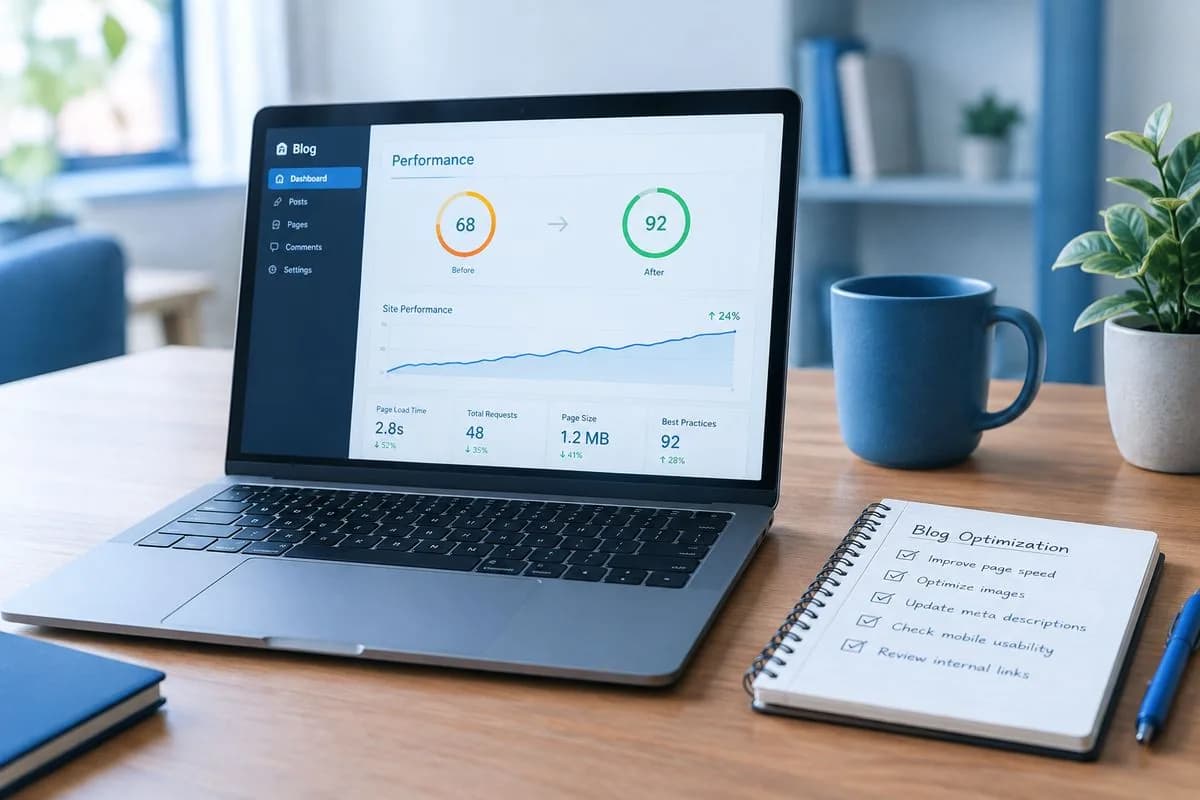
We reduced one client's homepage from 4.2MB to 680KB just by converting images to WebP and implementing lazy loading. Load time dropped from 4.1 seconds to 1.3 seconds — and that was before we even touched caching.
Trick #4: Minify and Combine CSS/JavaScript
Every CSS and JavaScript file is an HTTP request. A typical WordPress site with a theme and 10 plugins might make 30–50 requests for stylesheets and scripts. Each request adds latency, especially on mobile connections.
Minification removes whitespace, comments, and unnecessary characters from your code. It typically reduces file size by 15–30% with zero visual change.
Combining merges multiple CSS files into one and multiple JS files into one, reducing the number of HTTP requests. With HTTP/2 (standard in 2026), combining is less critical than it used to be, but still helps for sites with 20+ separate files.
Most caching plugins handle minification automatically. In WP Rocket, enable "Minify CSS files" and "Minify JavaScript files" under the File Optimization tab. In LiteSpeed Cache, go to Page Optimization and enable CSS/JS Minify.
Trick #5: Use a Content Delivery Network (CDN)
A CDN stores copies of your static files (images, CSS, JavaScript, fonts) on servers around the world. When a visitor in Tokyo loads your site hosted in New York, the CDN serves static files from a server in Tokyo — eliminating thousands of miles of latency.
The best CDN options for WordPress in 2026:
- Cloudflare (Free tier) — The most popular choice. Free plan includes CDN, DDoS protection, and basic optimization. The Pro plan ($20/mo) adds image optimization and better caching rules.
- Bunny CDN ($0.01/GB) — Pay-per-use pricing makes it incredibly affordable. Excellent performance and a simple WordPress plugin.
- QUIC.cloud — Built specifically for LiteSpeed servers. Integrates directly with LiteSpeed Cache plugin for full-page CDN caching.
For most WordPress sites, Cloudflare's free plan is the right starting point. It typically reduces load time by 20–40% for international visitors.
Trick #6: Clean Up Your Database
WordPress databases accumulate bloat over time: post revisions, spam comments, transient options, orphaned metadata, and auto-draft posts. A database that started at 10MB can grow to 500MB in a year of active use.
This bloat slows down every database query, which means every page load. Here's how to clean it:
- Limit post revisions. Add
define('WP_POST_REVISIONS', 5);to your wp-config.php file. This keeps only the 5 most recent revisions per post instead of unlimited. - Delete spam and trashed comments. Go to Comments > Spam and click "Empty Spam." Do the same for Trash.
- Clean transients. Use the WP-Optimize plugin to remove expired transients, which are temporary cached data that plugins leave behind.
- Optimize database tables. WP-Optimize can also run MySQL OPTIMIZE TABLE commands to defragment and reclaim space.
- Schedule weekly cleanups. WP-Optimize and similar plugins let you schedule automatic database maintenance.
Trick #7: Remove Unused Plugins and Themes
Every active plugin adds PHP code that WordPress loads on every page request. Even "lightweight" plugins add 5–20ms each. Ten unnecessary plugins can add 100–200ms to your load time.
Audit your plugins with this approach:
- Deactivate plugins one at a time and test your site speed after each deactivation. This reveals which plugins have the biggest performance impact.
- Use Query Monitor (free plugin) to see exactly how many database queries and how much load time each plugin adds.
- Replace heavy plugins with lightweight alternatives. For example, replace a full-featured social sharing plugin (adding 200ms) with simple SVG share links (adding 0ms).
- Delete deactivated plugins and unused themes. Even deactivated, they're a security risk. Delete anything you're not using.
Trick #8: Optimize Your Theme
Your theme is the largest single piece of code WordPress loads. A bloated theme with 15 bundled features you don't use can add 500ms–1 second to every page load.
Signs Your Theme Is Slowing You Down
- It loads multiple Google Fonts (each font adds 100–300ms)
- It includes built-in sliders, page builders, or animation libraries you don't use
- It loads 10+ JavaScript files in the header
- It makes external API calls on every page load
What to Do About It
If your theme is fundamentally bloated, switching themes is more effective than trying to optimize around the problem. The fastest WordPress themes in 2026 include GeneratePress, Kadence, Blocksy, and Astra. All four score 95+ on PageSpeed Insights with default settings.
If you can't switch themes, disable unused features in your theme's settings panel. Most premium themes let you turn off built-in modules like sliders, portfolios, and testimonials that load code whether you use them or not.
Trick #9: Implement Critical CSS
When a browser loads your page, it downloads the entire CSS file before rendering anything. If your stylesheet is 200KB, the browser waits for all 200KB before showing the first pixel — even though only 15KB of CSS applies to the visible (above-the-fold) content.
Critical CSS extracts the CSS needed for above-the-fold content and inlines it directly in the HTML. The rest of the CSS loads asynchronously after the page renders. This eliminates CSS as a render-blocking resource and typically improves LCP by 200–500ms.
WP Rocket generates Critical CSS automatically. LiteSpeed Cache has a similar feature called "Load CSS Asynchronously" with "Generate UCSS" (Unique CSS). Both work well for most sites.
Trick #10: Defer Non-Critical JavaScript
JavaScript is even more render-blocking than CSS because the browser must download, parse, and execute it before continuing. Adding defer or async attributes to your script tags tells the browser to continue rendering while JavaScript loads in the background.
- Defer — Downloads the script during HTML parsing and executes it after the page is parsed. Best for most scripts.
- Async — Downloads the script during HTML parsing and executes it immediately when ready. Best for independent scripts like analytics.
- Delay — WP Rocket's unique feature that doesn't load non-essential JavaScript until user interaction (scroll, click, tap). This is the most aggressive optimization and typically improves LCP by 300–800ms.
Be careful with defer/async — some scripts depend on others loading first. Test thoroughly after enabling these features. If something breaks (a slider stops working, a form doesn't load), exclude that specific script from deferral.
Trick #11: Preload Key Resources
Preloading tells the browser to start downloading critical resources before it discovers them naturally in the HTML. This is especially effective for fonts and above-the-fold images.
Add these tags to your <head> section:
- Preload your primary font:
<link rel="preload" href="/fonts/main.woff2" as="font" type="font/woff2" crossorigin> - Preload your hero image:
<link rel="preload" href="/images/hero.webp" as="image"> - Preconnect to external domains:
<link rel="preconnect" href="https://fonts.googleapis.com">
Don't preload everything — that defeats the purpose. Preload only the 2–3 resources that are critical for above-the-fold rendering. Your LCP image and primary font are the highest-priority candidates.
Trick #12: Enable GZIP or Brotli Compression
Compression reduces the size of text-based files (HTML, CSS, JavaScript, SVG) before they're sent to the browser. Brotli, the newer standard, typically achieves 15–20% better compression than GZIP.
Most modern hosting providers enable compression by default. Check yours by running your site through GTmetrix — it flags uncompressed resources in its recommendations.
If compression isn't enabled, you can add it via .htaccess (for Apache/LiteSpeed):
- For GZIP: Add
mod_deflatedirectives to your .htaccess file - For Brotli: Most LiteSpeed and Nginx servers support Brotli natively — you just need to enable it in the server configuration
Compression alone typically reduces total page transfer size by 60–70%, which translates to noticeably faster load times, especially on mobile connections.
Putting It All Together: The Speed Optimization Checklist
Here's the recommended order for maximum impact with minimum effort:
- Upgrade your hosting (biggest single improvement)
- Install a caching plugin and enable page, browser, and object caching
- Optimize images — convert to WebP, resize, enable lazy loading
- Enable a CDN (Cloudflare free plan is a great start)
- Minify CSS and JavaScript
- Remove unused plugins and themes
- Clean up your database
- Implement Critical CSS and defer JavaScript
- Preload key resources
- Enable Brotli compression
- Switch to a faster theme if needed
- Limit post revisions and optimize database tables
Speed optimization is not a one-time task. Run PageSpeed Insights monthly, review your plugin list quarterly, and test your site speed after every major update. The sites that stay fast are the ones that make performance a habit.
Expected Results
| Optimization | Typical Improvement | Effort Level |
|---|---|---|
| Better hosting | 300–800ms faster TTFB | Low (just migrate) |
| Caching plugin | 40–60% faster load | Low (install + configure) |
| Image optimization | 30–50% less page weight | Medium (initial setup) |
| CDN | 20–40% faster for remote visitors | Low (DNS change) |
| CSS/JS optimization | 200–500ms faster render | Medium (needs testing) |
| Plugin cleanup | 50–200ms per removed plugin | Low (audit + delete) |
| Database cleanup | 10–50ms per query | Low (run once, schedule) |
Frequently Asked Questions
How fast should a WordPress site load?
Aim for under 2 seconds as a baseline and under 1 second as a goal. Google considers a page with an LCP under 2.5 seconds to be "good," but faster is always better for user experience and conversions. With proper optimization and quality hosting, sub-second load times are achievable for most WordPress sites.
Does the number of plugins affect WordPress speed?
Yes, but quality matters more than quantity. Five well-coded plugins might add only 20ms total, while one poorly coded plugin can add 500ms. Use Query Monitor to identify slow plugins rather than applying a blanket rule. That said, most sites should aim for 15–20 active plugins maximum.
Is WP Rocket worth the $59/year price?
For most site owners, yes. WP Rocket's ease of use and sensible defaults save hours of configuration time compared to free alternatives. The delay JavaScript feature alone typically improves PageSpeed scores by 10–20 points. However, if your host uses LiteSpeed, the free LiteSpeed Cache plugin offers comparable or better performance.
Will a CDN help if most of my traffic is local?
A CDN still helps even for local traffic because it offloads static file delivery from your server, reducing server load and improving TTFB for dynamic content. For sites with 80%+ local traffic, the benefit is smaller (10–15% improvement) compared to sites with international audiences (30–40% improvement).
How do I know if my hosting is the bottleneck?
Check your TTFB (Time to First Byte). If it's consistently above 400ms, your hosting is likely the bottleneck. TTFB measures how long it takes the server to start sending data — no amount of front-end optimization can fix a slow server. Test TTFB at webpagetest.org using a test location near your server.

The author
Serverlys team
The people who run Serverlys hosting, domains and support. We write about what we see every day helping small businesses keep their websites fast, safe and online.
More from Serverlys team