SecurityServerlys team8 min read
Two-Factor Authentication for cPanel and WordPress
Summarize with:
Learn how to set up two-factor authentication (2FA) on your website, cPanel, WordPress, and hosting accounts. Step-by-step guide with authenticator apps
In 2025, stolen or weak passwords were the entry point for 81% of hacking-related data breaches. The problem is fundamental: no matter how strong your password is, it only takes one data breach at another service where you reused that password, one successful phishing email, or one keylogger on a compromised computer, and your account is exposed.
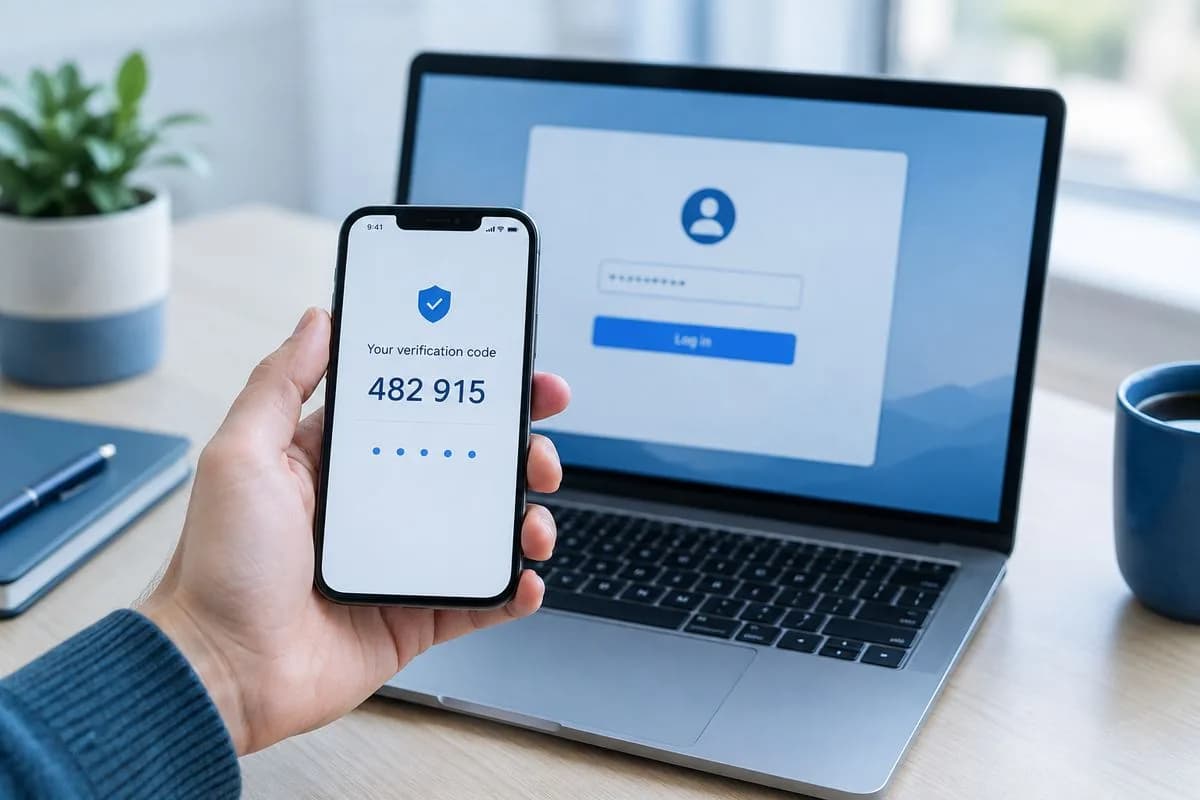
Two-factor authentication (2FA) solves this by requiring a second piece of evidence beyond your password. Even if someone steals your password, they cannot log in without the second factor — typically a time-based code from your phone. Setting up 2FA takes less than five minutes and blocks over 99% of automated account compromise attacks.
How Two-Factor Authentication Works
Authentication factors fall into three categories:
- Something you know: Your password, PIN, or security question answer.
- Something you have: Your phone, a hardware security key, or a smart card.
- Something you are: Your fingerprint, face scan, or other biometric data.
Two-factor authentication combines two of these categories. The most common combination is a password (something you know) plus a time-based one-time password from an authenticator app (something you have). An attacker would need to steal both your password and your physical device to gain access.
2FA Methods Compared
| Method | Security Level | Convenience | Vulnerabilities |
|---|---|---|---|
| SMS codes | Low–Medium | High | SIM swapping, SS7 attacks, phone theft |
| Email codes | Low | High | Email account compromise |
| Authenticator app (TOTP) | High | Medium | Device theft (mitigated by phone PIN) |
| Push notifications | High | High | Push fatigue attacks |
| Hardware security key (FIDO2) | Very High | Medium | Physical theft only |
| Passkeys | Very High | Very High | Device-dependent |
Our recommendation: Use an authenticator app (TOTP) as your default 2FA method. It is significantly more secure than SMS, works without cellular service, and is supported by virtually every platform. Hardware security keys are even better for high-value accounts.
Best Authenticator Apps in 2026
- Authy: Our top recommendation. Supports multi-device sync (so you do not lose access if your phone breaks), encrypted cloud backups, and works across iOS, Android, and desktop. Free.
- Google Authenticator: Simple and reliable. Recently added cloud sync (optional). No frills, no account needed. Free.
- Microsoft Authenticator: Best if you use Microsoft services. Supports push notifications for Microsoft accounts, TOTP for everything else. Free.
- 1Password / Bitwarden: These password managers can also generate TOTP codes, keeping your passwords and 2FA codes in one place. Some security experts advise against this (if someone breaches your password manager, they get both factors), but for most people the convenience outweighs the risk.
Setting Up 2FA on WordPress
WordPress does not include 2FA by default, but several plugins add it in minutes. Here is a step-by-step setup using the most popular options:
Option 1: Wordfence (Recommended)
- Install and activate the Wordfence Security plugin from the WordPress plugin repository.
- Go to Wordfence → Login Security in your WordPress dashboard.
- You will see a QR code. Open your authenticator app and scan the QR code.
- Enter the 6-digit code from your authenticator app to verify the setup.
- Download your recovery codes. Wordfence provides 5 single-use recovery codes. Store them in your password manager or print them and keep them in a secure location.
- Click Activate. 2FA is now enabled for your account.
To enforce 2FA for all administrators and editors, go to Wordfence → Login Security → Settings and check "Require 2FA for all administrators" and "Require 2FA for all editors."
Option 2: WP 2FA Plugin
- Install and activate the WP 2FA plugin.
- The setup wizard launches automatically. Choose your preferred 2FA method (authenticator app recommended).
- Scan the QR code with your authenticator app.
- Enter the verification code to confirm.
- Configure a grace period for other users (how long they have to set up 2FA before being locked out).
- Choose whether to enforce 2FA for all users, specific roles, or make it optional.
Setting Up 2FA on cPanel
cPanel is the control panel used by most shared and cloud hosting providers, including Serverlys. Enabling 2FA on cPanel protects your entire hosting account, not just your website.
- Log in to your cPanel dashboard.
- Navigate to Security → Two-Factor Authentication.
- Click Set Up Two-Factor Authentication.
- A QR code appears. Scan it with your authenticator app.
- Enter the 6-digit code from your app to verify.
- Click Configure Two-Factor Authentication.
From now on, every cPanel login requires both your password and a code from your authenticator app. This protects your file manager, database access, email configuration, DNS settings, and every other cPanel function.
Important: cPanel Recovery
If you lose access to your authenticator app and do not have recovery codes, you will need to contact your hosting provider to disable 2FA on your account. This is by design — if it were easy to bypass, it would not be secure. Always save your recovery codes.
Setting Up 2FA on Other Platforms
Domain Registrars
Your domain registrar controls your domain name. If someone gains access to your registrar account, they can transfer your domain, change your DNS records, or redirect your traffic. Always enable 2FA on your domain registrar.
- Namecheap: Account → Security → Two-Factor Authentication. Supports TOTP apps and U2F hardware keys.
- GoDaddy: My Account → Login & PIN → 2-Step Verification. Supports SMS and authenticator apps.
- Cloudflare: My Profile → Authentication → Two-Factor Authentication. Supports TOTP and WebAuthn (hardware keys).
Email Providers
Your email account is often the master key to all your other accounts (password reset links go to email). Securing it with 2FA is critical.
- Google Workspace / Gmail: Security → 2-Step Verification. Supports Google Prompts, authenticator apps, SMS, and hardware keys.
- Microsoft 365 / Outlook: Security → Advanced Security Options → Two-step verification. Supports Microsoft Authenticator push notifications and TOTP apps.
SSH Access
If you have SSH access to your server, adding 2FA prevents unauthorized remote access even if your SSH key or password is compromised:
- Install
libpam-google-authenticatoron your server. - Run
google-authenticatoras the user you want to protect. - Scan the QR code with your authenticator app.
- Edit
/etc/pam.d/sshdto addauth required pam_google_authenticator.so. - Edit
/etc/ssh/sshd_configand setChallengeResponseAuthentication yes. - Restart SSH:
sudo systemctl restart sshd.
Hardware Security Keys: The Gold Standard
For maximum security, consider hardware security keys like YubiKey or Google Titan. These are physical USB or NFC devices that you tap or insert during login. They are immune to phishing (the key verifies the website's identity, not just vice versa) and cannot be intercepted remotely.
- YubiKey 5 Series: $50–$75. Supports FIDO2, WebAuthn, TOTP, and more. Works with USB-A, USB-C, NFC, and Lightning. Compatible with hundreds of services.
- Google Titan: $30–$35. USB-A/NFC or USB-C/NFC versions. FIDO2 compatible. Simple and reliable.
Always register at least two hardware keys (keep the second as a backup in a safe location) and save recovery codes in case both keys are lost.
2FA Best Practices
- Enable 2FA on every account that supports it. Start with the most critical: hosting, domain registrar, email, CMS admin, payment processors, and social media accounts.
- Use authenticator apps over SMS. SMS-based 2FA is better than no 2FA, but it is vulnerable to SIM-swapping attacks where criminals convince your carrier to transfer your number to their SIM card.
- Save your recovery codes. Store them in a password manager or print them and keep them in a physically secure location (home safe, locked drawer). Do not store them in plain text on your computer.
- Set up 2FA on a second device. If your authenticator app supports multi-device (like Authy), add it to a second phone or tablet. If your primary device is lost or broken, you can still access your codes.
- Enforce 2FA for your entire team. One team member without 2FA is a vulnerability for the entire organization. Make it a requirement, not an option, for anyone with admin or editor access.
- Do not use the same 2FA method for everything. Use your authenticator app for most services, but consider a hardware key for your most critical accounts (hosting, domain registrar, primary email).
Two-factor authentication is the single highest-impact security measure a website owner can implement. It takes five minutes to set up and blocks 99.9% of automated attacks.
Frequently Asked Questions
What happens if I lose my phone with the authenticator app?
This is why recovery codes are essential. Use your recovery codes to log in, then set up 2FA on your new device. If you use Authy with multi-device enabled, you can access your codes from another device. If you lose both your device and recovery codes, you will need to contact each service's support team to regain access, which can take days.
Is SMS-based 2FA still worth using?
SMS 2FA is significantly better than no 2FA at all. It blocks the vast majority of automated attacks. However, it is vulnerable to SIM-swapping attacks, where criminals convince your mobile carrier to transfer your phone number to their SIM card. For important accounts, use an authenticator app instead. For low-risk accounts where SMS is the only option, it is still worth enabling.
Can 2FA be hacked?
While no security measure is 100% foolproof, 2FA makes account compromise dramatically harder. Sophisticated attacks like real-time phishing (where attackers relay your 2FA code immediately) exist but are rare and targeted. Hardware security keys with FIDO2 are resistant even to these advanced phishing attacks because they verify the website's domain before responding.
Should I require 2FA for all WordPress users?
At minimum, require 2FA for all administrators and editors — anyone who can modify content, install plugins, or access sensitive settings. For subscriber-level accounts (if your site has user registration), 2FA can be offered as optional since these accounts typically cannot cause site-wide damage.
Does 2FA slow down my login process?
By about 10 seconds. You type your password, open your authenticator app, and enter the 6-digit code. With a hardware security key, it is even faster: insert the key, tap the button, done. The minor inconvenience is worth preventing a catastrophic account breach.

The author
Serverlys team
The people who run Serverlys hosting, domains and support. We write about what we see every day helping small businesses keep their websites fast, safe and online.
More from Serverlys team