
Getting startedServerlys team8 min read
Google Analytics 4 for Beginners: Set Up GA4 Properly
Summarize with:
Step-by-step GA4 setup guide for beginners. Learn how to install Google Analytics 4, configure events, read reports
Google Analytics 4 is one of the most powerful free tools available to business owners, but most people install it and never look at it again. The interface is intimidating, the terminology is confusing, and the sheer volume of data makes it hard to know what to focus on. This guide changes that.
We'll walk you through setting up GA4 correctly, configuring the events that matter, and reading the reports that tell you whether your website is actually working for your business. By the end, you'll know how to answer the questions that matter: Where is my traffic coming from? What are visitors doing on my site? And what's actually generating revenue?
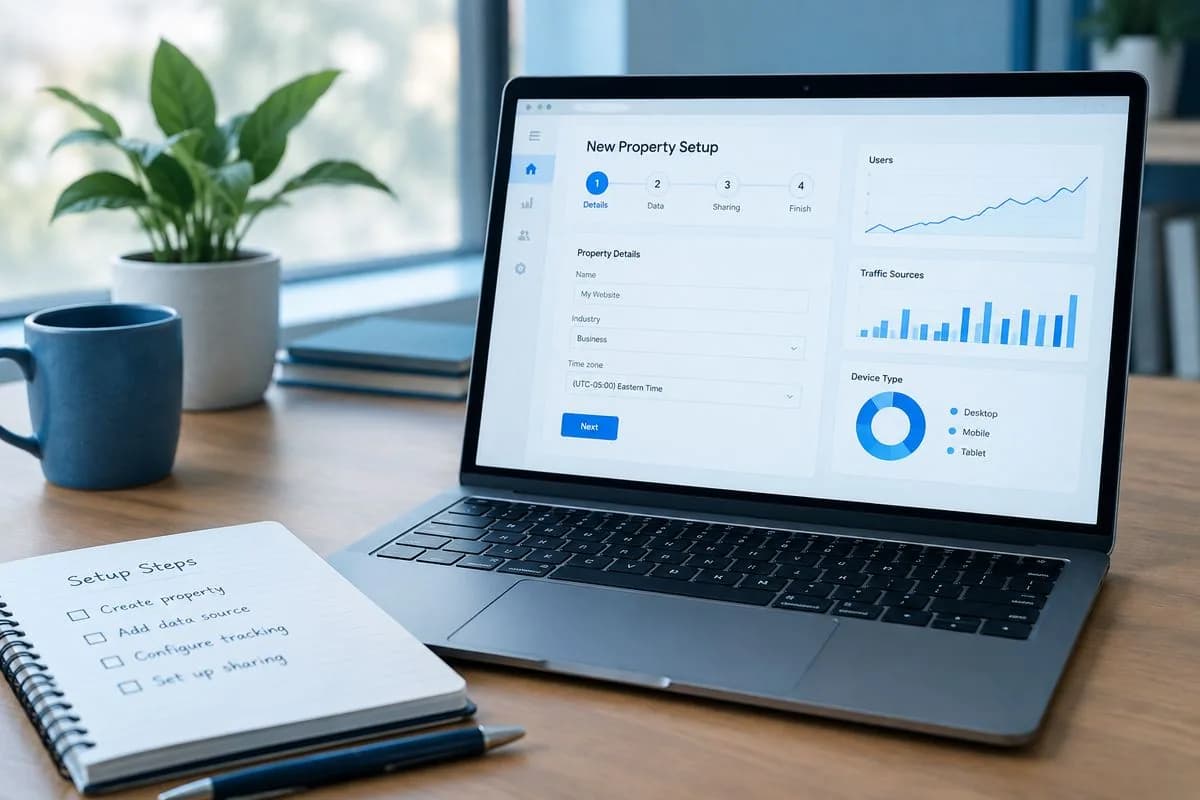
Step 1: Create Your GA4 Property
If you don't have GA4 set up yet, here's how to start from scratch:
- Go to analytics.google.com and sign in with your Google account
- Click "Start measuring" if this is your first time, or click Admin > Create Property if you already have an account
- Enter your property name (usually your business name), select your time zone and currency
- Select your business size and objectives (these customize the interface but don't limit functionality)
- Choose "Web" as your platform and enter your website URL
- GA4 will generate a Measurement ID (starts with "G-") — this is your tracking code identifier
Step 2: Install the Tracking Code
You have three options for adding GA4 to your website:
Option A: WordPress Plugin (Easiest)
Install the "Site Kit by Google" plugin. It connects to your Google account and adds GA4 tracking automatically. No code editing required. This is the best option for most WordPress users.
Option B: Google Tag Manager (Most Flexible)
If you use Google Tag Manager, add a new "Google Analytics: GA4 Configuration" tag with your Measurement ID. This gives you the most control over when and how tracking fires, and makes it easy to add custom events later.
Option C: Manual Code Installation
Copy the GA4 tracking snippet from your property settings and paste it into the <head> section of every page on your site, just before the closing </head> tag. If you use a WordPress theme, add it to your theme's header file or use a "header scripts" plugin.
Verify It's Working
After installation, go to your GA4 property and click Realtime in the left sidebar. Open your website in another tab. Within 30 seconds, you should see yourself counted as an active user. If you do, tracking is working correctly.
Step 3: Configure Essential Events
GA4 uses an event-based model. Everything a visitor does — viewing a page, clicking a button, submitting a form, making a purchase — is tracked as an event. Some events are collected automatically; others you need to set up.
Events GA4 Tracks Automatically
- page_view — Every page load
- session_start — When a new session begins
- first_visit — First time a user visits your site
- scroll — When a user scrolls past 90% of the page
- click — Outbound link clicks (enabled automatically)
- file_download — PDF, DOCX, and other file downloads
- video_start, video_progress, video_complete — YouTube video engagement
Events You Should Set Up
| Event | Purpose | Setup Method |
|---|---|---|
| form_submit | Track contact form submissions | Enhanced measurement or GTM |
| purchase | Track ecommerce transactions | Ecommerce plugin or GTM |
| generate_lead | Track lead generation actions | GTM trigger on thank-you page |
| phone_call_click | Track clicks on phone numbers | GTM trigger on tel: links |
| email_click | Track clicks on email links | GTM trigger on mailto: links |
Mark Key Events as Conversions
In GA4, go to Admin > Events. Find the events that represent business value (form submissions, purchases, phone calls) and toggle them as Key Events (formerly called "Conversions"). This tells GA4 these are the actions that matter most, and they'll appear prominently in your reports.
Step 4: Understanding the Key Reports
GA4 has dozens of reports, but only a handful matter for most small businesses. Here are the five reports you should check regularly:
1. Acquisition Overview (Where Traffic Comes From)
Navigate to Reports > Acquisition > Traffic Acquisition. This shows where your visitors are coming from, grouped by channel:
- Organic Search — People who found you through Google or Bing. This is your SEO traffic.
- Direct — People who typed your URL directly or used a bookmark.
- Referral — People who clicked a link on another website to reach yours.
- Organic Social — Traffic from Facebook, Instagram, LinkedIn, etc. (not paid ads).
- Paid Search — Traffic from Google Ads or other search ad platforms.
- Email — Traffic from email campaigns (requires UTM parameters).
What to look for: Which channels drive the most conversions (not just traffic)? A channel with 100 visitors and 10 conversions is more valuable than one with 1,000 visitors and 2 conversions.
2. Engagement Overview (What Visitors Do)
Navigate to Reports > Engagement > Pages and Screens. This shows your most-visited pages, along with engagement metrics for each one.
Key metrics to watch:
- Average engagement time — How long people actively spend on each page (reading, scrolling, interacting). Under 30 seconds suggests the content isn't holding attention.
- Views — Total page views. Watch for trends up or down month over month.
- Key events — How many conversions each page generates. Your highest-traffic page isn't necessarily your most valuable page.
3. Landing Page Report (First Impressions)
Navigate to Reports > Engagement > Landing Pages. This shows which pages visitors see first when they arrive on your site. These are your first impressions — and they determine whether visitors stay or leave.
What to look for: Landing pages with high traffic but low engagement time or high bounce rates need improvement. These are pages where you're attracting visitors but failing to keep them.
4. Conversions Report (Business Results)
Navigate to Reports > Engagement > Key Events. This shows your conversions over time, broken down by event type. This is the most important report for business owners because it directly measures results.
What to look for: Are conversions trending up or down? Which conversion events are growing fastest? Are there days of the week or times of day when conversions peak?
5. User Demographics (Who Your Visitors Are)
Navigate to Reports > User > User Attributes > Overview. This shows the age, gender, location, and interests of your visitors. This data helps you confirm whether you're reaching your target audience.
What to look for: Does your actual audience match your intended audience? If you're targeting local customers but most traffic comes from outside your service area, your SEO strategy needs adjustment. See our local SEO guide for help with this.
The 5 Metrics That Actually Matter
GA4 provides hundreds of metrics. Focus on these five:
| Metric | What It Measures | Why It Matters |
|---|---|---|
| Users | Unique visitors to your site | Shows audience growth over time |
| Key Events | Business-valuable actions (forms, purchases) | Directly measures business results |
| Session Conversion Rate | % of sessions with a key event | Shows how well your site converts visitors |
| Avg. Engagement Time | Active time spent on your site | Indicates content quality and relevance |
| Bounce Rate | % of sessions with no engagement | Shows how many visitors leave immediately |
The goal of analytics isn't to collect data. It's to answer specific questions. 'Is my marketing working?' 'Which pages need improvement?' 'Where should I invest my next dollar?' If your analytics setup can't answer those questions, it needs work.
Setting Up UTM Tracking for Campaigns
UTM parameters are tags you add to URLs so GA4 can track exactly which campaigns, emails, and social posts drive traffic and conversions. Without UTMs, traffic from email campaigns shows up as "Direct" and you can't measure what's working.
How to Create UTM URLs
Use Google's Campaign URL Builder (search for it) and fill in these fields:
- utm_source — Where the traffic comes from (newsletter, facebook, instagram)
- utm_medium — The marketing medium (email, social, cpc)
- utm_campaign — The specific campaign name (summer_sale, product_launch)
Example: yoursite.com/sale?utm_source=newsletter&utm_medium=email&utm_campaign=summer_sale_2026
Use UTM URLs in every email campaign, social media post, and ad. This gives you clear data on which specific campaigns drive the most conversions.
Common GA4 Mistakes to Avoid
- Not filtering internal traffic — Your own visits inflate your data. Go to Admin > Data Streams > your stream > Configure Tag Settings > Define Internal Traffic. Add your office IP address to exclude it.
- Ignoring mobile data — Check performance by device type regularly. If mobile engagement is significantly lower, your site has mobile usability issues.
- Checking data too frequently — Daily fluctuations are noise. Review trends weekly or monthly for meaningful patterns.
- Not setting up conversions — Without key events marked, GA4 just tracks pageviews. That's like running a store and counting foot traffic but not sales.
- Relying on real-time data — Real-time reports are useful for testing but not for analysis. Use the standard reports with at least 7-30 days of data.
Frequently Asked Questions
Is Google Analytics 4 free?
Yes. GA4 is completely free for all websites, regardless of traffic volume. There's a paid version called Google Analytics 360 for enterprises that need advanced features, but the free version covers everything a small business needs.
How long does it take to see data in GA4?
Real-time data appears within seconds of installation. Standard reports populate within 24-48 hours. For meaningful trends and patterns, allow 2-4 weeks of data collection before drawing conclusions.
Does GA4 slow down my website?
The GA4 tracking script adds approximately 20-30ms to page load time, which is negligible on quality hosting. On slow shared hosting, this can stack with other scripts and become noticeable. Cloud hosting provides enough headroom that analytics scripts don't impact performance.
What happened to bounce rate in GA4?
GA4 initially removed bounce rate but brought it back due to user demand. In GA4, bounce rate is the inverse of engagement rate. A "bounced" session is one where the user didn't engage (no scroll, no click, under 10 seconds). This is a more nuanced and useful metric than the old Universal Analytics bounce rate.
Should I use Google Tag Manager with GA4?
For basic tracking, GA4 alone is sufficient. If you need to track custom events (button clicks, form submissions, scroll depth), Google Tag Manager provides more flexibility. For ecommerce sites, GTM is practically essential for proper purchase and product tracking.

The author
Serverlys team
The people who run Serverlys hosting, domains and support. We write about what we see every day helping small businesses keep their websites fast, safe and online.
More from Serverlys team