SecurityServerlys team8 min read
Website Backup Strategy: How Often Should You Back Up?
Summarize with:
Learn the best website backup strategy for your business. How often to back up, where to store backups, the 3-2-1 rule, and tools to automate everything.
Imagine waking up tomorrow and your website is gone. Not slow, not partially broken — completely gone. Your database is corrupted, your files are overwritten with malware, and your hosting provider's last backup is from three weeks ago. Every product listing, every blog post, every customer review, every custom page you spent months building: erased.
This scenario happens every day to real businesses. And in nearly every case, the disaster was preventable with a proper backup strategy. The frustrating truth is that backups are simple, cheap, and can be fully automated. Yet most small businesses either do not back up at all, or rely on a single backup method that fails exactly when they need it most.
Why Websites Need Backups
Before we cover the how, let us make the case for why backups are not optional. Your website can be destroyed or corrupted by:
- Hacking and malware: Attackers may inject malware, deface your site, or encrypt your database with ransomware. A clean backup lets you restore without paying ransoms or rebuilding from scratch.
- Failed updates: A WordPress core update, plugin update, or theme change can break your site. Without a backup, you are stuck debugging under pressure while your site is down.
- Human error: An employee accidentally deletes a page, overwrites a database table, or changes a critical setting. It happens more often than anyone admits.
- Server failure: Hardware fails. Drives crash. Even with redundancy, data centers can experience failures that affect your site.
- Hosting provider issues: Hosting companies can go out of business, accidentally delete accounts, or experience catastrophic failures. If your only copy of your website lives on their servers, you are at their mercy.
Backups are like insurance. The cost of having them is trivial. The cost of not having them is everything.
What Should You Back Up?
A complete website backup includes two components:
1. Files
Everything stored on your server's file system: your CMS core files (WordPress, Joomla, etc.), themes, plugins, uploaded media (images, PDFs, videos), custom code, configuration files (.htaccess, wp-config.php), and email data if stored locally.
2. Database
Your website's database stores all dynamic content: pages, posts, products, comments, user accounts, orders, settings, and metadata. For WordPress, this is typically a MySQL or MariaDB database. Without the database, your files are just a shell with no content.
Both are essential. A file backup without the database means you have the code but no content. A database backup without files means you have content but no theme, images, or functionality. Always back up both together.
How Often Should You Back Up?
The right backup frequency depends on how often your website changes and how much data you can afford to lose. This concept is called your Recovery Point Objective (RPO) — the maximum acceptable amount of data loss measured in time.
| Website Type | Change Frequency | Recommended Backup | RPO |
|---|---|---|---|
| Static brochure site | Monthly or less | Weekly | 7 days |
| Blog (1–3 posts/week) | Several times per week | Daily | 24 hours |
| Ecommerce store | Hourly (orders, inventory) | Every 4–6 hours | 4–6 hours |
| SaaS / web application | Continuous (user data) | Hourly + real-time replication | 1 hour or less |
| Community forum / social | Continuous (user posts) | Every 4–6 hours | 4–6 hours |
The General Rule
If you update your site at least once a week, daily backups are the minimum. If your site processes transactions, user registrations, or form submissions throughout the day, back up more frequently. For most small businesses, daily backups with 30 days of retention is the sweet spot between safety and storage costs.
The 3-2-1 Backup Rule
The 3-2-1 rule is the gold standard for backup strategy, used by IT professionals worldwide:
- 3 copies of your data: The original on your server plus two backup copies.
- 2 different storage types: For example, one backup on your hosting provider's backup system and another on a cloud storage service like AWS S3 or Google Cloud Storage.
- 1 copy stored off-site: At least one backup must be in a physically different location from your server. If your data center experiences a fire, flood, or catastrophic failure, your off-site backup survives.
For a practical small business implementation, this might look like:
- Copy 1: Your live website on your hosting server (the original).
- Copy 2: Automated daily backup stored by your hosting provider in a separate data center.
- Copy 3: Weekly backup automatically sent to a cloud storage service (AWS S3, Google Cloud, Backblaze B2, or Dropbox Business).
Backup Tools and Solutions
Hosting Provider Backups
The simplest backup solution is the one your hosting provider offers. Quality hosts include automated daily backups with one-click restore as a standard feature. This should be your first line of defense, but never your only one.
- Pros: No setup required, integrated with your hosting environment, easy restoration.
- Cons: Usually stored in the same data center (not truly off-site), limited retention periods, you lose them if you leave the host.
WordPress Backup Plugins
If you run WordPress, several plugins can automate backups and send copies to external storage:
- UpdraftPlus: The most popular WordPress backup plugin with over 3 million installations. Free version supports scheduled backups to cloud storage (Google Drive, Dropbox, S3, and more). Premium version adds incremental backups and migration tools.
- BlogVault: Real-time incremental backups with zero server load (backups are processed on BlogVault's servers). Includes staging, migration, and malware scanning. Starts at $89/year.
- Jetpack Backup (VaultPress): Part of the Jetpack suite by Automattic. Real-time backup with one-click restore. Starts at $10/month.
- BackWPup: Free plugin that supports scheduled backups to multiple destinations. Less user-friendly than UpdraftPlus but highly configurable.
Server-Level Backup Tools
For VPS or dedicated server users, server-level tools provide more control:
- cPanel Backup / JetBackup: If your hosting uses cPanel, JetBackup or the built-in backup tool can schedule full and incremental backups with off-site storage.
- Restic or BorgBackup: Open-source, encrypted, deduplicated backup tools that run via command line. Ideal for automated backups via cron jobs.
- mysqldump + rsync: The manual approach: dump your database with
mysqldump, sync files withrsync, and store everything off-site. Works but requires scripting knowledge.
External Backup Services
- CodeGuard: Monitors your website for changes and creates automatic backups whenever files change. Includes malware monitoring and one-click restore. Starts at $5/month.
- Sucuri Backups: Part of the Sucuri security suite. Combines malware scanning with automated backups. Cloud-based storage.
Backup Storage: Where to Keep Your Backups
| Storage Option | Cost | Reliability | Speed to Restore |
|---|---|---|---|
| Same server | Free | Low (same failure point) | Very fast |
| Hosting provider backup | Usually included | Medium | Fast |
| AWS S3 | $0.023/GB/mo | Very high (99.999999999%) | Medium |
| Google Cloud Storage | $0.020/GB/mo | Very high | Medium |
| Backblaze B2 | $0.006/GB/mo | High | Medium |
| Dropbox/Google Drive | $10–$20/mo | High | Slow (manual download) |
For most small businesses, the best approach is: let your hosting provider handle daily backups for quick recovery, and use a cloud storage service (AWS S3 or Backblaze B2 are the most cost-effective) for weekly off-site copies.
Testing Your Backups
A backup you have never tested is a backup you cannot trust. Schedule quarterly backup restoration tests:
- Download a backup copy from your backup storage.
- Set up a test environment (a staging site or local server).
- Restore the files and database to the test environment.
- Verify the site works: Check the homepage, navigate through key pages, test forms, and verify that recent content is present.
- Document the process: Note how long the restore took, any issues encountered, and the steps required. This documentation is invaluable during a real emergency.
Backup Retention: How Long to Keep Backups
Keeping only the most recent backup is risky. Malware infections, SEO spam injections, and database corruption can go undetected for days or weeks. If your only backup is from yesterday and the infection started two weeks ago, your "clean" backup is actually infected too.
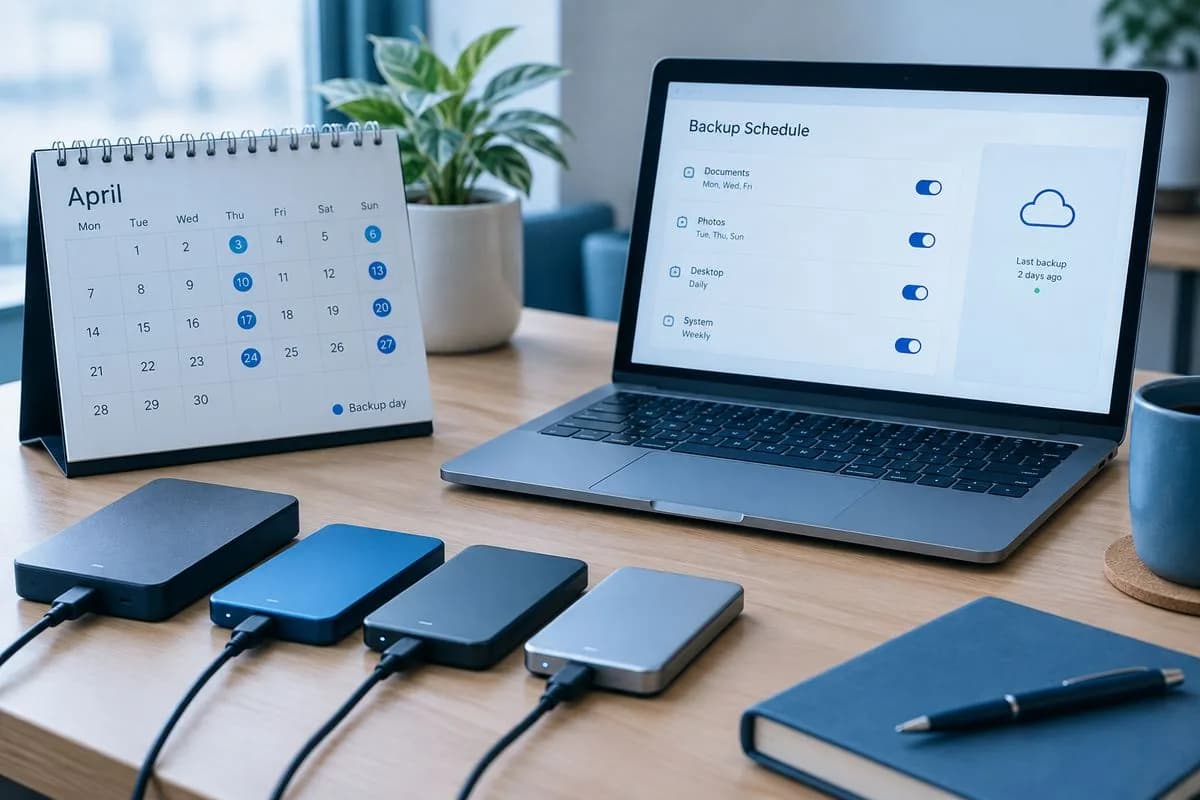
- Daily backups: Keep the last 30 days.
- Weekly backups: Keep the last 12 weeks (3 months).
- Monthly backups: Keep the last 12 months.
This tiered retention strategy gives you granular recovery options for recent issues (daily backups) and long-term protection against slow-moving threats (monthly backups), all while keeping storage costs manageable.
Common Backup Mistakes
- Only backing up files, not the database. Your database contains all your content. Without it, your files are useless.
- Storing backups only on the same server. If the server fails, you lose both your site and your backup.
- Never testing restoration. Corrupted backups are more common than you think. Test regularly.
- Relying on manual backups. Manual backups are backups you will forget. Automate everything.
- Not encrypting backups. Your backup contains your entire site, including database credentials and customer data. Always encrypt off-site backup copies.
- Ignoring backup alerts. If your backup tool sends a failure notification, act on it immediately. A skipped backup is a gap in your recovery timeline.
Frequently Asked Questions
Does my hosting provider back up my site automatically?
Some do, some do not, and the quality varies widely. Always confirm that your host provides daily automated backups, how long they retain them, and how restoration works. Even if they do, maintain your own independent backup as well. Never rely solely on your hosting provider for backups.
How much storage do website backups need?
A typical small business website (WordPress with images, products, and content) is 1–5 GB. With daily backups and 30-day retention, you need 30–150 GB of storage. At Backblaze B2 rates ($0.006/GB/month), that costs less than $1/month. Storage is not a valid excuse to skip backups.
Should I back up before every update?
Yes, always. Before updating WordPress core, plugins, themes, or PHP version, create a manual backup. This gives you a clean restore point if the update breaks something. Most backup plugins offer a one-click backup that takes less than a minute.
Can I use backups to migrate to a new host?
Absolutely. A complete backup (files + database) is essentially a portable copy of your entire website. You can restore it on any compatible server. Many backup plugins (UpdraftPlus, BlogVault, Duplicator) specifically include migration features that make moving between hosts straightforward.
What is incremental vs. full backup?
A full backup copies everything every time. An incremental backup only copies files that have changed since the last backup. Incremental backups are faster and use less storage, but restoration can be more complex because you need the base backup plus all incremental changes. Most modern backup tools handle this automatically.

The author
Serverlys team
The people who run Serverlys hosting, domains and support. We write about what we see every day helping small businesses keep their websites fast, safe and online.
More from Serverlys team