
Snaply by Serverlys
 Snaply by Serverlys
Screenshots and screen recordings, explained
- Capture a screen, an area, an element or a whole scrolling page
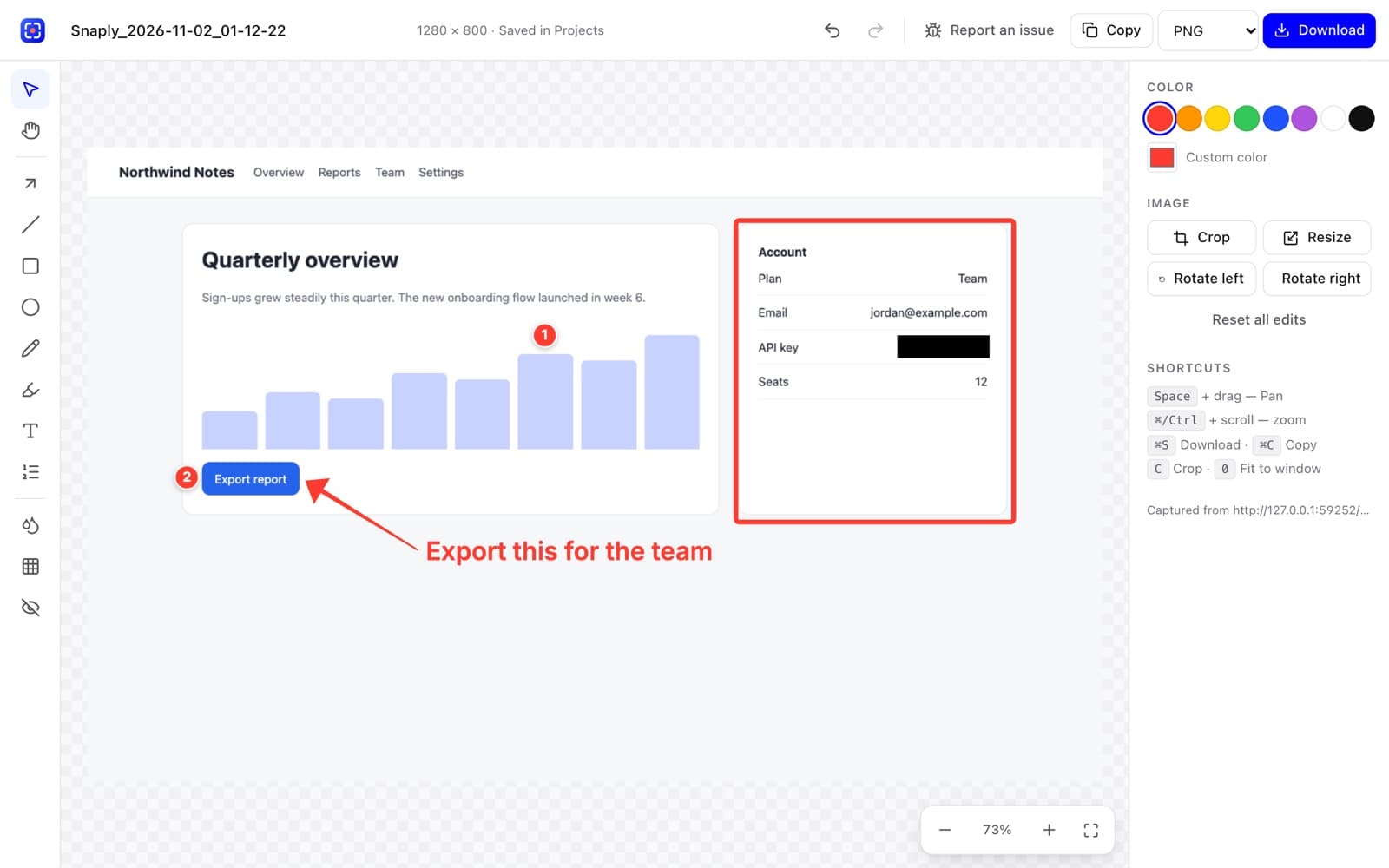
- Annotate, blur and redact before you share
- Record your tab, a window or your entire screen
Free · No account · No watermark · Chrome on desktop
New on the Chrome Web Store. If Chrome shows “Proceed with caution”, that is its standard notice for new extensions. Snaply is reviewed by Google and safe to install. Why?
- Every feature, with no trial and no watermark
- $0
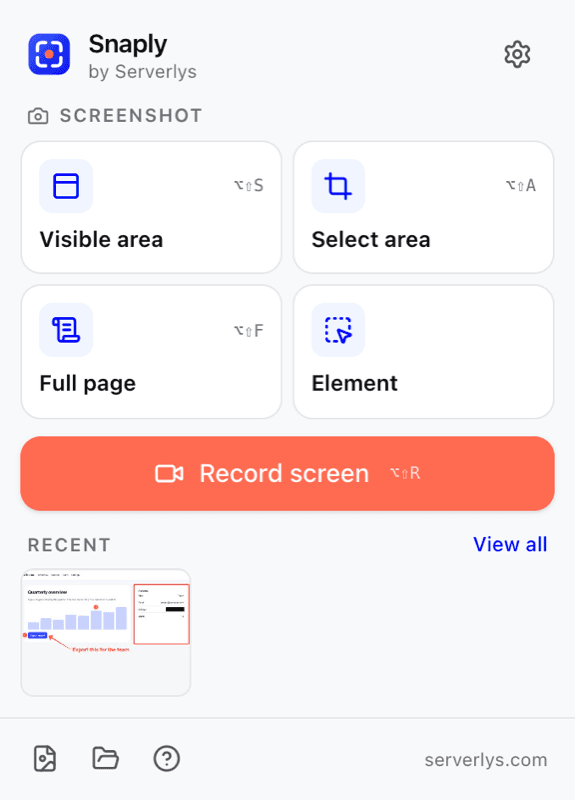
- Ways to screenshot: visible, area, element, full page
- 4
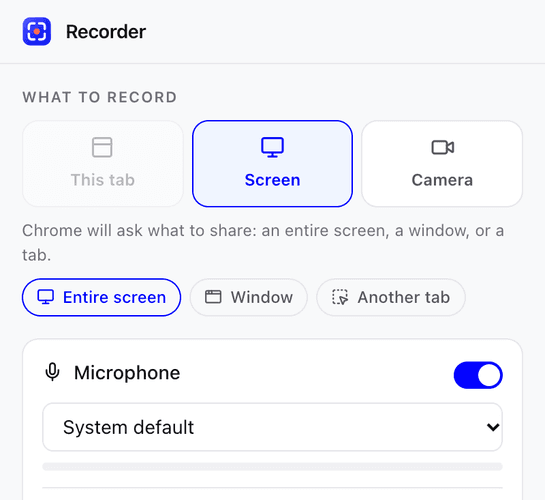
- Things to record: this tab, any tab, a window, the screen, your webcam
- 5
- Bytes uploaded. Your captures stay on your computer
- 0
Screenshots and screen recording
Captureanything.Explaineverything.
Most explanations go faster with a screenshot, and most screenshots go faster with an arrow on them. Snaply is for every moment you would otherwise type out what you are looking at.
What Snaply does
Everything a screen capture tool should be
One click each
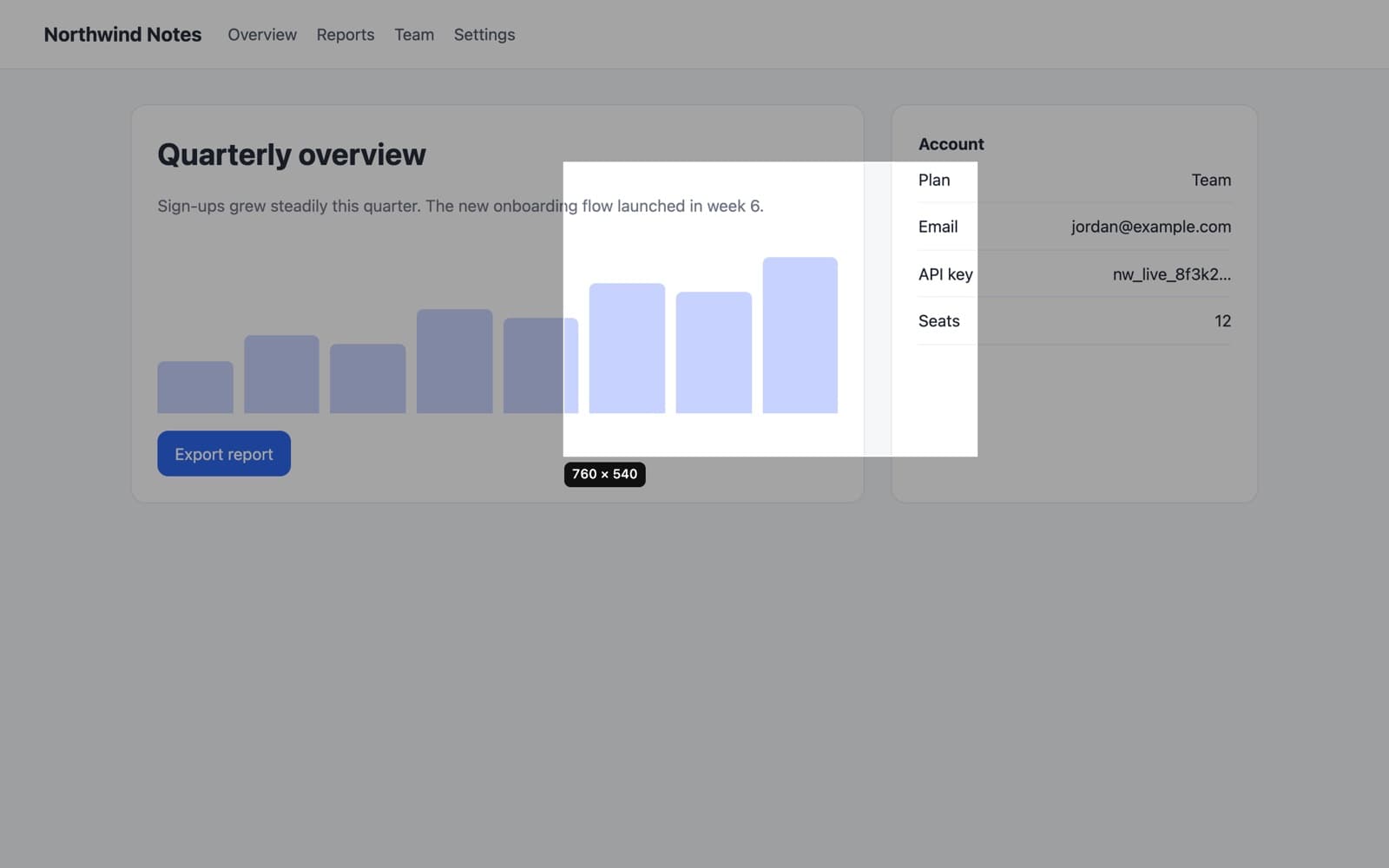
Four ways to capture
The visible area, an area you drag, a single element on the page, or the whole scrolling page stitched into one image.
- Full page handles sticky headers and puts the page back
- Real resolution on high-DPI and Retina screens
- PNG or JPEG, copy to clipboard, rename before saving
What it is good for
When a picture saves a paragraph
Six everyday jobs where a screenshot or a short recording does the explaining for you.
- Support tickets
Reporting a problem
Capture the page, circle the error, number the steps. Snaply's issue report bundles the image and your notes into one ZIP for the support ticket.
- Design reviews
Feedback on a website
Reviewing a new site or a design? Put the arrow exactly where you mean instead of describing which button, on which page, near the top.
- Training
Quick how-to videos
Record your screen with your voice and a webcam bubble, and show a customer or a colleague how it is done once, instead of on every call.
- Records
Saving a whole page
Full-page capture stitches a long scrolling page into one image: receipts, articles, competitor pages, or your own site before a redesign.
- Privacy
Sharing without exposing
Redact an email address, a balance or an API key before the screenshot goes anywhere. The redaction is burned into the file, not layered on top.
- Teams
Async updates for a team
A two-minute recording often replaces a meeting. Trim the start and end, cut the mistakes, and send it as a video or a short GIF.
Your captures stay on your computer
A screenshot tool sees whatever is on your screen, so it should be the last thing that phones home. Snaply does not phone home at all.
Read the privacy policyNo account
Install it and use it. There is nothing to sign up for.
No uploads
Captures live in Chrome's storage on your machine until you download or share them.
No tracking
No analytics, no ads, no telemetry. Its pages cannot even reach the internet.
No remote code
Everything runs from the package Google reviewed. Nothing is downloaded later.
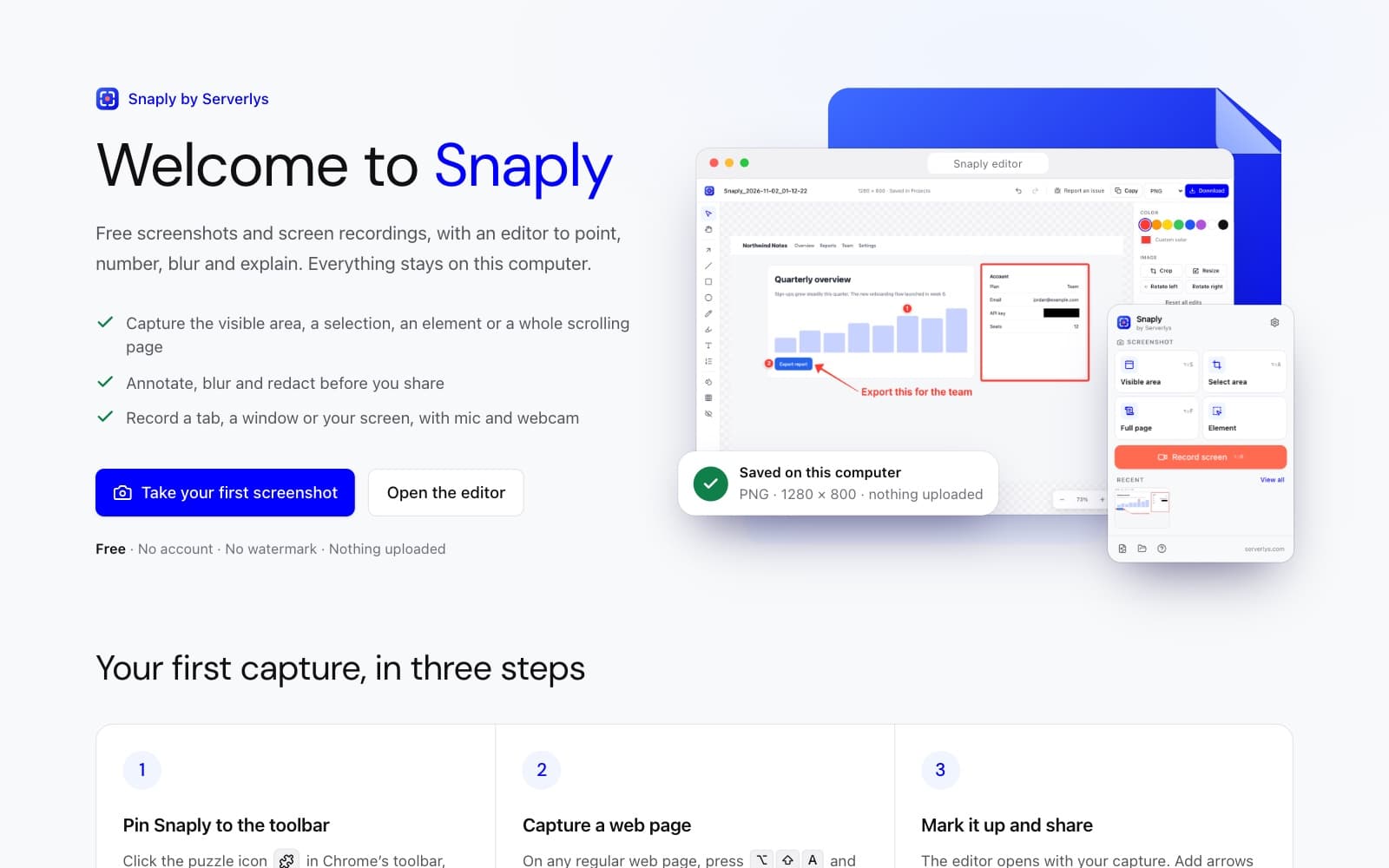
Getting started
Ready in under a minute
Snaply walks you through it on its welcome page. This is all it takes.
- 1Add it to ChromeOne click on this page, then confirm in the Chrome Web Store. No account, no card.
- 2Pin the iconOpen Chrome's puzzle-piece menu and pin Snaply, so it is one click away on every page.
- 3Capture or recordPick a capture or press a shortcut. Your first screenshot opens straight in the editor.
FAQ
Questions about Snaply
Free, private, and here is exactly how it works.
Still have a question?
Ask ConvoAI now, or write to the team and a real person will answer.
Yes. Every feature is free, with no account, no trial, no watermark and no limit on how many screenshots or recordings you make. Serverlys builds it as a tool for our customers and for anyone else who finds it useful.
Click Add to Chrome on this page. It opens Snaply on the Chrome Web Store, where one more click adds it to Chrome. Pin it to your toolbar and press its icon or the keyboard shortcut to capture.
Yes. Snaply passed Google's review before it was published on the Chrome Web Store. If you use Chrome's Enhanced Safe Browsing, Chrome shows this message for every new extension until its developer has a few months of history on the store, whatever the extension does. Click Continue to install. Snaply asks only for what it needs to capture and record, keeps everything on your computer, and never uploads your screenshots or recordings. The message stops appearing on its own as Snaply builds that history.
Nowhere but your own computer. They are kept in Chrome's storage for the extension until you download, copy or delete them. Snaply has no servers, no analytics and no upload feature, and its pages are technically blocked from contacting the internet.
Google Chrome on desktop: Windows, macOS, Linux and ChromeOS. It does not run on Chrome for phones, because Chrome on mobile does not support extensions.
Both. You can record the current tab with its sound, another tab, a single window, your entire screen, or just your webcam. Microphone and a webcam bubble are optional, and you can pause and resume as you go.
There is no fixed limit. Recordings are written to your disk in one-second chunks rather than held in memory, so long recordings stay stable, and an unfinished recording can be recovered if Chrome closes unexpectedly.
The Redact tool draws a solid box that is flattened into the exported image, so the hidden content is gone from the file, not just covered by a layer someone could remove. Blur and pixelate are there too, but use Redact for anything that must not be recoverable.
Only what capturing needs: access to the tab you are on when you click Snaply, the ability to draw the selection overlay, tab recording, downloads and local storage. It does not ask to read every website you visit. The Snaply privacy policy explains each one.
Get Snaply for Chrome
Free screenshots and screen recordings, with nothing leaving your computer.