WordPressServerlys team3 min read
A WordPress maintenance routine you can actually keep
Summarize with:
What to check on a WordPress site every week, every month and every year, in the order that prevents the most problems for the least time.
WordPress sites rarely break all at once. They drift. A plugin nobody uses stays installed, an update gets postponed, a backup quietly stops running, and one day a routine change takes the site down at the worst possible time. Nearly every WordPress emergency is a maintenance task that was skipped months earlier.
The fix is a routine small enough that you will actually do it. Here is one, split into weekly, monthly and yearly jobs, with the reasoning behind each so you can adapt it to your own site.
Every week: ten minutes
- Open the site as a visitor. Load the home page, a key service or product page and the contact page on your phone. You are looking for anything obviously wrong: broken layout, missing images, error messages.
- Send yourself a test message through your contact form. Forms fail silently. If the email does not arrive, you are losing enquiries and nobody will tell you. Our contact form guide covers the usual causes.
- Check the updates screen. Note what is waiting. Security releases for WordPress core and for any plugin you rely on should not wait for the monthly session.
- Glance at comments and form submissions for spam. A sudden flood is often the first sign a form or comment section needs protecting.
Every month: half an hour
- Confirm a recent backup exists, then restore one somewhere safe. A backup you have never restored is a hope rather than a plan. Restoring to a staging copy proves it works without touching the live site. See our backup strategy guide for what a good set of restore points looks like.
- Apply plugin and theme updates, on staging first if you can. Update, click through the important pages, then repeat on the live site. Our guide to setting up a WordPress staging site shows how.
- Remove what you do not use. A deactivated plugin still sits on the server and can still carry a vulnerability. If you have not used it in three months, delete it. The same goes for themes other than your active theme and one default fallback.
- Review user accounts. Every administrator account is a way in. Remove people who have left, downgrade anyone who does not need admin rights, and make sure every remaining admin has two-factor authentication switched on.
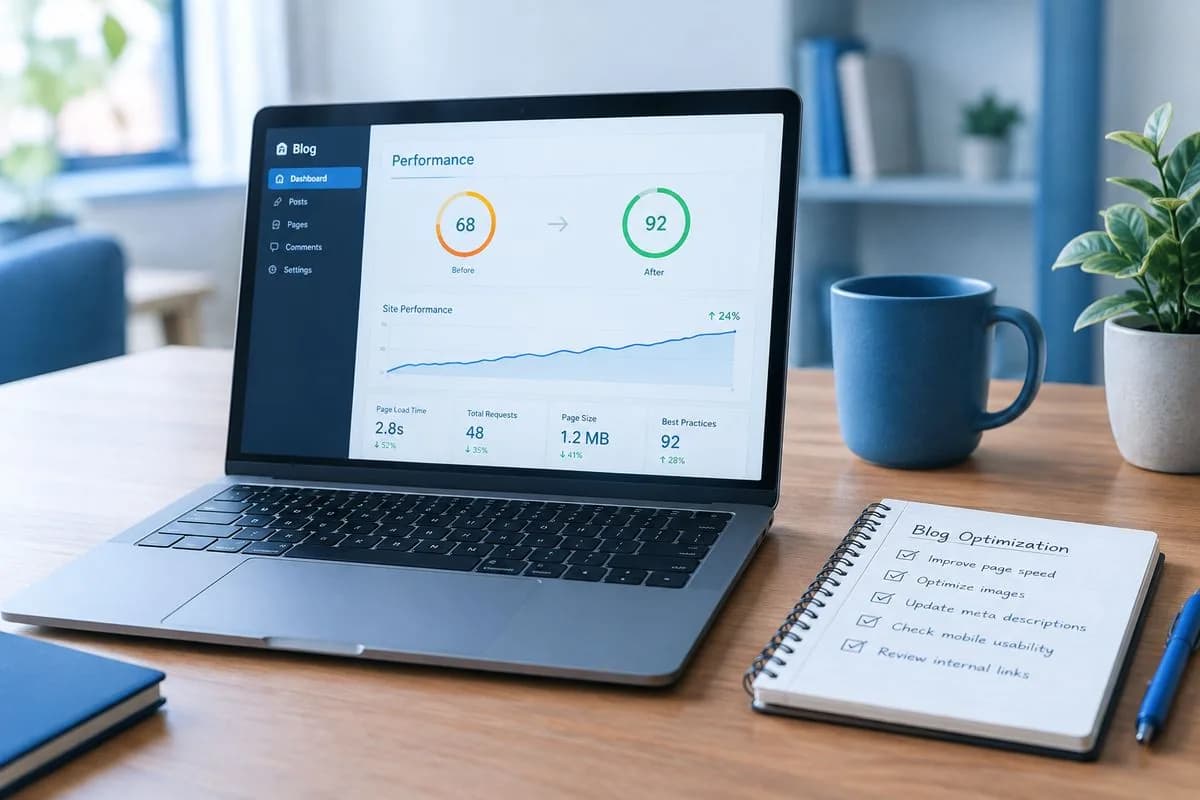
- Check speed on a phone. Run your home page through PageSpeed Insights and compare with last month. A sudden drop usually points at a new plugin, a new embed or an image someone uploaded at full camera size.
Every year: an afternoon
- Check your PHP version in the control panel. Older PHP versions stop receiving security fixes, and newer ones are generally faster. Test the upgrade on staging first.
- Audit your plugins as a whole. For each one, ask whether it is still maintained, whether you still need it, and whether two plugins overlap. Fewer, well-maintained plugins is the single biggest reliability improvement most sites can make. Our list of must-have WordPress plugins is a useful baseline.
- Renew and check your domain and SSL. Make sure the domain is on auto-renew with a payment card that has not expired, and that the certificate covers every address the site uses.
- Read your own site. Opening hours, prices, team members and policies change. Out-of-date information costs more trust than a slow page.
What your hosting should be doing for you
Some of this list should not be your job at all. On our WordPress hosting, daily backups, automatic WordPress updates, free SSL renewal and LiteSpeed caching are included on every plan, so the weekly and monthly sessions shrink to checking that they ran and testing what matters to you.
If you would rather hand the whole server side over, managed hosting adds patching, hardening and monitoring by our team, with restores done for you. Your content and your plugin choices stay yours; keeping the platform underneath them healthy becomes ours.
And if something has already gone wrong, start with our guide to the WordPress white screen of death, then come back here so it does not happen twice.

The author
Serverlys team
The people who run Serverlys hosting, domains and support. We write about what we see every day helping small businesses keep their websites fast, safe and online.
More from Serverlys team